What is the best CapCut YouTube workflow? Script with timestamps first, edit against them in CapCut, then import an externally generated and corrected SRT rather than using auto-captions. This CapCut YouTube workflow beats auto-captioning on accuracy while keeping CapCut's caption styling, and it extends to 24+ language dubs from the same edit.
CapCut has an enormous, largely mobile-first creator base that almost nobody in the AI-scripting space writes for. This is the practical version of that article.
Why script-first editing is faster
A timestamped script is an edit decision list. You are not discovering the video in the timeline. You are executing a plan you already made.
The difference is measurable in a way most workflow advice is not. Editing a 12-minute talking-head video from an unstructured recording routinely takes two to three hours because you are making structural decisions inside a timeline, which is the worst place to make them. With a timestamped script, the rough cut is transcription work: find the marker, cut to it, move on. An hour is normal.
That is the foundation of the whole capcut youtube workflow below.
The step-by-step CapCut YouTube workflow
Step 1: Generate a timestamped script
In Creator AI, produce the script through your trained voice profile with timestamps enabled. Those timestamps are simultaneously your teleprompter plan and your shot list.
Step 2: Record against the timestamps
Record in the script's order. When you flub a line, pause, say the section number aloud, and restart the section. That one habit makes step 3 twice as fast because the audio contains its own markers.
Step 3: Rough cut in CapCut using the script as markers
Import the footage, then work down the script rather than down the timeline. Cut each section against its timestamp, keep the pacing decisions the script already made, and resist re-planning the video in the editor.
Step 4: The SRT handoff
This is the technically valuable part of this capcut youtube workflow, and the reason it exists.
- Export or note the final cut's audio.
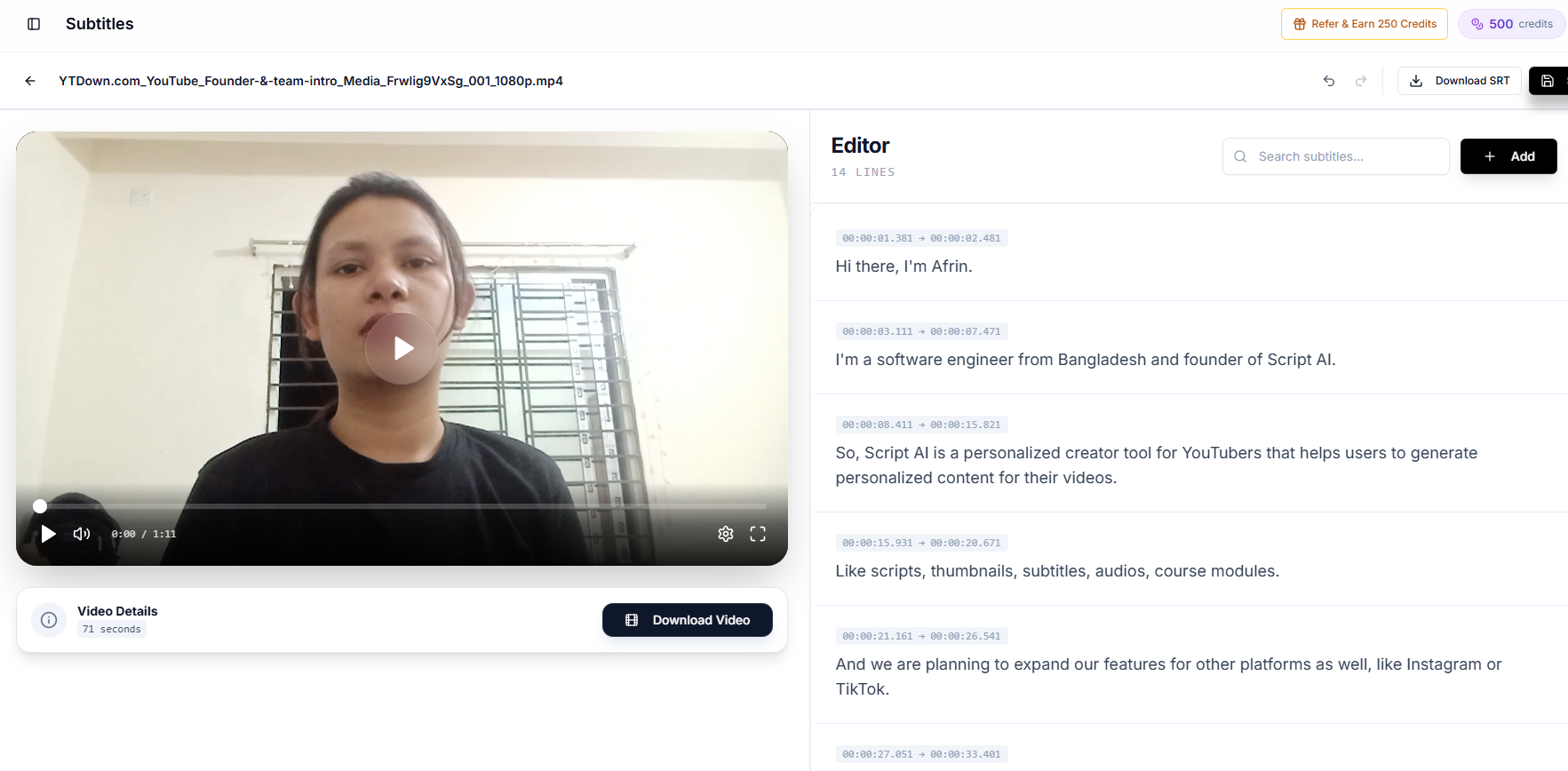
- Generate subtitles in Creator AI (up to 200 MB or about 10 minutes per upload, so split longer videos).
- Fix the terminology in the subtitle editor. Names, brands, product names, technical terms, numbers. This is the step that makes the whole workflow worth it.
- Export as SRT.
- In CapCut, import the SRT rather than running auto-captions.
- Apply CapCut's caption styling, which is what CapCut is genuinely best at.
Why this beats auto-captions: CapCut's automatic captioning is good on ordinary speech and unreliable on exactly the words that carry meaning in your niche. Once styling is applied, every correction is a separate edit on a separate caption block. Fixing the text before import is one pass in a text editor rather than forty passes in a timeline. The costs of getting this wrong are covered in why auto-caption errors are expensive.
Step 5: Translate for a second language
Translate the corrected subtitle track in Creator AI and export a second SRT. Because you corrected the source before translating, the proper nouns survive translation instead of being translated into nonsense.
Import as a second caption track for a multilingual version, or upload it to YouTube as an additional subtitle language.
Step 6: Dub the audio
Dub into any of 24+ languages, then drop the dubbed track into CapCut over the same edit. Mute the original audio, export one file per language. The dub is timed against the same cut, so sync is usually automatic.
Which languages are worth doing is a separate question with an actual answer. See the dubbing ROI breakdown.
Step 7: Export settings for YouTube
Match YouTube's recommended upload encoding: 1080p or 4K, the frame rate you recorded at rather than a converted one, MP4 with H.264, and audio at 48 kHz. Do not upscale, and do not let CapCut re-encode at a lower bitrate than your source.
Long-form and Shorts from the same project
The same CapCut YouTube workflow covers vertical. Duplicate the project, switch the canvas to 9:16, and pull the segments your script already built to be self-contained. If you wrote for clippability, this takes minutes; if you did not, it takes an afternoon and produces worse clips. The rules for writing long-form that contains Shorts are in our clipping tools guide.
Where CapCut's built-in AI is good enough
Do not over-apply the handoff. CapCut's own tools win in several places:
- Auto-captions for casual content where no jargon is involved: vlogs, reactions, informal talking head.
- Background removal, which is fast and genuinely good.
- Auto-reframe for converting horizontal to vertical.
- Speed ramps, transitions, and templates, none of which have an equivalent elsewhere in this stack.
The SRT handoff earns its place only when terminology accuracy matters. For a vlog about your weekend, it is overhead.
The mobile-only version
A large share of CapCut's users never open a desktop editor, and this workflow survives that.
- Script: Creator AI in a mobile browser, exported as PDF or read on screen.
- Record: phone camera, in script order.
- Edit: CapCut mobile, cutting against the timestamps.
- Subtitles: upload the exported clip to Creator AI from the phone, correct the terminology, export SRT.
- Import: bring the SRT into CapCut mobile and style it.
- Dub: queue the dub in the browser, download the audio, add it as a track.
- Export and upload directly to YouTube.
The one genuinely awkward step on mobile is fine-grained timing adjustment, which is fiddly on a small screen. Everything else works.
Troubleshooting the SRT import
Encoding errors or garbled accents. Save the SRT as UTF-8. This causes the majority of import failures.
Timing drift across the video. Almost always a frame-rate mismatch or a trim applied after captioning. Caption the final cut, and apply a single global offset rather than fixing cues one by one.
Captions too long to read. Aim for about 42 characters per line and a maximum of two lines, with each cue on screen for at least a second.
Overlapping cues. Two captions with overlapping timestamps will render unpredictably. Validate before import.
The summary
The capcut youtube workflow worth copying is not "use CapCut's AI" or "do not use CapCut's AI." It is: make the structural decisions in the script, fix the words once before they are baked into styling, and let CapCut do the two things it is genuinely best at: fast editing and good-looking captions. Start free and generate the first timestamped script.
Keep Reading
- The Most Accurate AI Subtitle Generator? 7 Tools Tested
- YouTube Auto Captions Are Wrong Where It Costs You Most
- How Subtitles Increase YouTube Views and Watch Time
- SRT vs VTT: Subtitle Formats Explained
- Fix the captions once, not forty times, start free or see plans.